


Google Flow vs Google Vids: Which AI Video Tool Should You Use in 2026?
Google now offers several AI-powered video tools, but their names can make the differences confusing. Google Flow, Google Vids, and Google Veo all work
with video, but they are not the same type of product.
After testing both Flow and Vids in practical workflows, the difference became much clearer. In simple terms: Flow helps you create visual experiences, Vids helps you explain ideas, and Veo is the video-generation model that powers many of Google’s generative video capabilities.
This guide compares Google Flow vs Google Vids, shows practical examples from real workflows, and explains where Google Veo fits into the picture.
What Is Google Flow?
Google Flow is an AI creative filmmaking and visual storytelling environment. It is designed for generating, refining, and connecting visual scenes rather than simply turning a presentation into a video.
Flow can be useful for cinematic AI video, visual storytelling, concept videos, creative transitions, image-to-video experiments, promotional visuals, and social videos where the visual itself needs to create a strong reaction.
Google describes Flow as a creative environment built around its generative media models. You can explore the current product on the official Google Flow page.
Practical Flow Example: From University Library to AI Research Lab
In one of our tests, we started with an ordinary university library and built a sequence of connected scenes. The library gradually transformed into an advanced AI research environment, scientific visualizations appeared, and the visual story expanded into a futuristic academic setting.
This is where Flow works particularly well: the visual transformation itself becomes the story.
A second Flow experiment also demonstrated how separate generated clips can be combined into a short-form visual story.
What Is Google Vids?
Google Vids approaches video from a different direction. It is an AI-powered video creation and editing app designed around communication, explanation, collaboration, and presentation-style workflows.
Instead of starting with filmmaking, Vids often starts with a message: explain a topic, create a training video, turn information into an educational video, add narration, record a screen, or transform existing material into a structured presentation.
See the current capabilities in the official Google Vids help documentation.
Our Practical Google Vids Test
For our practical test, we gave Google Vids one educational topic: 3 Ways AI Can Support University Learning.
The goal was not to create another cinematic scene. We wanted to see whether Vids could turn one educational idea into a structured explanation. Using the Storyboard workflow, Vids generated a draft with an outline, scenes, media suggestions, text, script, and narration structure.
The video covered personalized learning, research support, creating and presenting ideas, and the principle that AI should support learning rather than replace thinking.
Slides to Video: A Useful Vids Workflow
One of the most useful Vids experiments was turning a prepared educational slide deck into a video. We created a seven-slide presentation about AI and university learning, then converted it into a video workflow inside Vids.
This suggests a practical repurposing system for educators and content creators:
Article → Slides or Carousel → Google Vids → Educational Video
The result is more presentation-like than cinematic, but it can be much faster when the goal is to explain information clearly rather than create a dramatic visual sequence.
Google Flow vs Google Vids: Quick Comparison
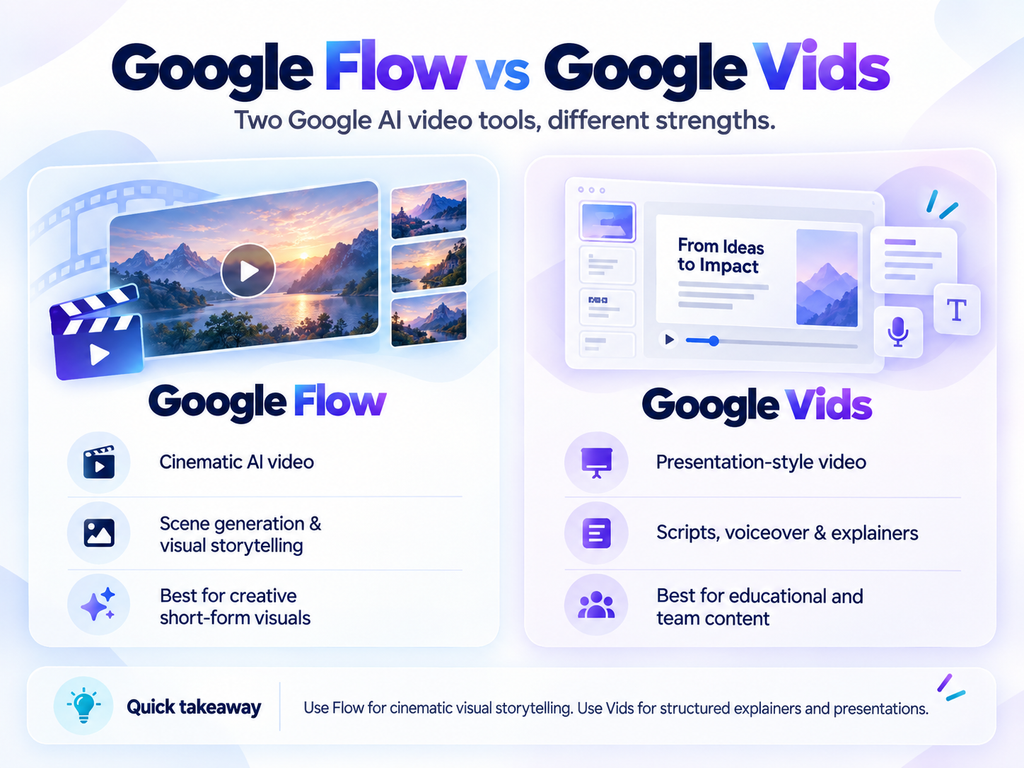
| Feature | Google Flow | Google Vids |
|---|---|---|
| Main purpose | Creative visual production | Structured video communication |
| Best for | Cinematic and creative AI scenes | Educational and explanatory videos |
| Prompt-to-video | Strong | Available |
| Storyboard | Creative scene workflow | Structured AI storyboard |
| Presentations | Not the main focus | Strong fit |
| Slides-to-video | Not the main workflow | Yes |
| Creative transformations | Strong | More presentation-oriented |
| Educational videos | Possible | Excellent fit |
| Social storytelling | Excellent | Good |
| Training and tutorials | Possible | Excellent fit |
The tools overlap, so the most useful question is not simply, “Can this tool generate video?” The better question is: What type of workflow is it designed around?
Where Does Google Veo Fit In?
This is the part that causes the most confusion. Google Veo is not the same type of product as Flow or Vids. Veo is Google’s generative video model. You can learn more on the official Google DeepMind Veo page.
Veo = the video engine
Veo generates video from prompts, images, and supported references.
Flow = the creative studio
Flow gives creators a broader environment for directing, extending, refining, and organizing generative visual scenes.
Vids = the communication workspace
Vids helps transform information into structured videos for teaching, explaining, presenting, or workplace communication.
This is why a deeper Google Flow vs Google Veo comparison deserves a separate practical test rather than treating Veo as simply a third video editor.
Which Tool Is Better for Students?
For a student creating a presentation, explaining an assignment, or turning study material into a short educational video, Google Vids is usually the more natural starting point. The structure of the message matters more than cinematic effects.
If the assignment involves visual storytelling, creative filmmaking, or an imaginative concept, Flow becomes much more interesting.
Which Tool Is Better for Researchers and Academics?
For research explainers, course materials, lectures, presentations, or training videos, Vids is a strong fit. For visual research concepts, science communication, cinematic introductions, or unusual visual demonstrations, Flow offers more creative control.
A researcher or educator could also combine them: create a striking visual in Flow, then place that visual inside a structured explanation in Vids.
Which Tool Is Better for Content Creators?
For creators producing Shorts, Reels, visual ads, or highly attention-grabbing AI scenes, Flow provides the more natural creative playground. Vids becomes especially useful when the content needs narration, teaching, slides, explainers, structured information, or training.
One Important Lesson From Our Tests
Before testing both tools, it was tempting to treat Google Vids as another version of Flow. That was not the most useful approach.
When we repeatedly asked Vids to generate similar university scenes, the results naturally began to look similar. The workflow became much more useful when we stopped asking, “Can Vids make the same cinematic video as Flow?” and instead asked, “Can Vids turn this idea into a useful explanation?”
That is where the distinction became clear: both tools can create video, but they solve different creative problems.
Google Flow vs Google Vids: Which Should You Choose?
Choose Google Flow when the visual itself is the main experience: cinematic scenes, transformations, creative storytelling, visual experimentation, and striking short-form content.
Choose Google Vids when the message matters more than the spectacle: lessons, explainers, tutorials, presentations, academic communication, and training videos.
Flow creates the experience.
Vids explains the idea.
Veo generates the video.
For many creators, educators, students, and researchers, the best workflow may eventually involve more than one of these tools.
Related Reading
- Google Flow for AI Video Creation: From Fast Drafts to High-Quality Output
- Canva AI 2.0 in Practice: Prompts for Research, Design and Automation