

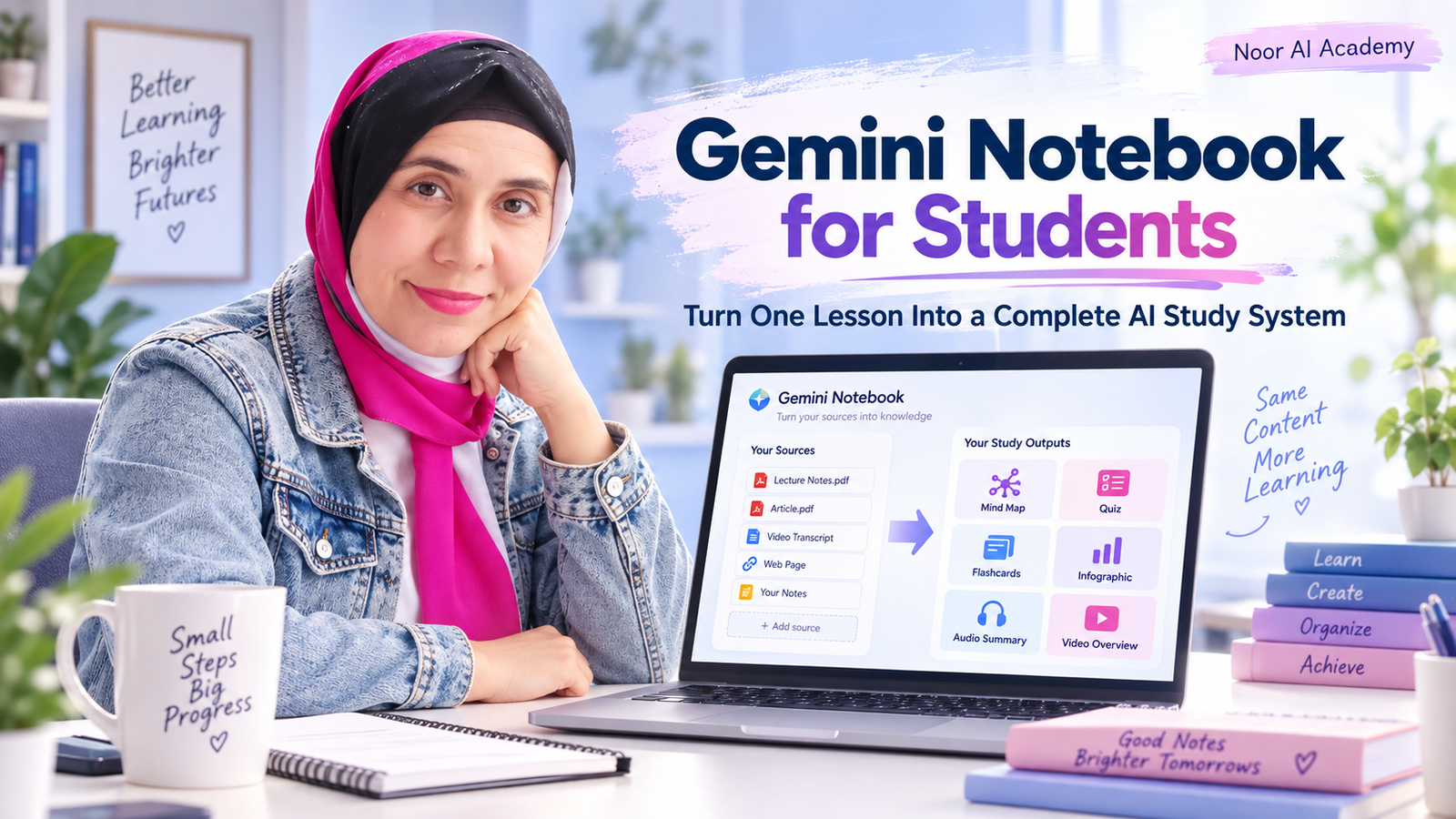
Gemini Notebook for students can turn the same lesson into several different ways to learn: a source-grounded chat, mind map, quiz, flashcards, infographic, study report, Audio Overview, and even a Video Overview. The important part is not generating more content for the sake of it. The goal is to build a study workflow that helps you understand, test, visualize, and review the same material in different ways.
In this practical example, I used one topic—photosynthesis—and started with only two sources: a PDF and a YouTube video. From those two sources, I built a complete AI-assisted study system inside Gemini Notebook.
Note: Google renamed NotebookLM to Gemini Notebook in July 2026. It remains a standalone product, so you may still see people searching for or referring to it as NotebookLM.
What Is Gemini Notebook for Students?
Watch the full Gemini Notebook for Students tutorial:
Gemini Notebook is an AI-powered research and learning assistant built around your own sources. You can add material such as PDFs, websites, YouTube videos, audio files, Google Docs, and Google Slides, then ask questions that are grounded in those sources. The chat can also show inline citations, which makes it easier to return to the original material and verify an answer.
The Studio panel can transform the same sources into formats such as mind maps, reports, data tables, flashcards, quizzes, slide decks, infographics, Audio Overviews, and Video Overviews.
This source-first approach is useful for students because it changes the question from “What does AI know about this topic?” to “How can AI help me work with the materials I am actually studying?”
Step 1: Build the Notebook Around Your Sources
I created a notebook for photosynthesis and added two sources:
- a PDF with more detailed scientific explanations;
- a YouTube video with a simpler visual introduction.
Using two different kinds of source was useful because they served different learning purposes. The video helped with the big picture, while the PDF provided more detail about chloroplast structure, light-dependent reactions, Photosystem I and II, ATP, NADPH, and the Calvin cycle.
A good rule is to keep each notebook focused. Instead of mixing unrelated courses or subjects into one place, build a notebook around a clear learning goal, unit, lecture, or research question.
Step 2: Ask Questions and Check the Sources
Once the sources were added, I did not start by asking for a generic summary. I asked Gemini Notebook to identify the most important concepts a student should understand and then compare what each source contributed.
For example:
Use only the sources in this notebook. Identify the five most important concepts a student should understand about photosynthesis. Do not explain them in detail yet. For each concept, tell me which source supports it.
I also asked:
Compare the two sources. What does the YouTube video explain well at a beginner level, and what additional detail does the PDF provide for a more advanced learner?
One of the most useful parts of this workflow is the ability to inspect citations. Instead of accepting an AI answer immediately, open the citation and return to the original source. This keeps AI in the role of learning assistant rather than unquestioned authority.
This fits the same principle I use in How to Study With AI Without Letting AI Do the Thinking for You: use AI to support understanding, not to remove the thinking process.
Step 3: Visualize the Topic With a Mind Map
Next, I generated a mind map. This is especially useful when a topic contains several connected concepts.
Photosynthesis can feel like a long sequence of terms when it is presented only as text. A mind map makes it easier to see the structure: the overall process, the location inside the chloroplast, the light-dependent reactions, the Calvin cycle, and the relationships among the main components.
The best way to use a mind map is not simply to look at it. Explore it, close it, and then try to reconstruct the main branches from memory. That turns a visual aid into an active learning task.
Step 4: Test Yourself With Quizzes and Flashcards
After visualizing the topic, I moved to retrieval practice.
Gemini Notebook can generate quizzes and flashcards from the same notebook sources. The important difference is that the student is no longer just receiving an explanation. The student has to retrieve an answer.
A practical rule is simple: answer before revealing.
With a quiz, choose an answer before reading the explanation. With a flashcard, try to say the answer before flipping the card. This makes the AI output part of a real study process rather than another form of passive reading.
Step 5: Review the Whole Lesson With an Infographic
This was my favorite output in the experiment.
The infographic turned the photosynthesis lesson into one visual overview. Instead of reopening several pages of notes just to remember the big picture, I could see the main ideas and how they connect in a single visual.
For a topic such as photosynthesis, that is especially useful because the learner needs to connect sunlight, water, carbon dioxide, chlorophyll, glucose, oxygen, and the overall process.
However, the infographic should not replace the lesson itself. I would use it near the end of the study workflow:
Study the sources → Ask questions → Test yourself → Review the infographic.
That makes the infographic a consolidation tool. It can also be useful later in revision notes, presentations, or visual study materials.
Step 6: Organize the Material With Reports and Data Tables
The same notebook can also reorganize information into more structured formats.
I generated a study report for a document-style overview and a data table for a more structured view of the material. These outputs can be helpful when a topic contains categories, comparisons, stages, terms, or facts that are easier to review in rows and columns.
But you do not need every output for every lesson. A useful study workflow is selective. Use the format that solves the learning problem you have at that moment.
Step 7: Turn the Lesson Into an Audio Overview
Audio Overview was one of the most interesting parts of the test. Gemini Notebook can create AI-hosted discussions based on notebook sources.
My first Audio Overview sounded more like a professional podcast aimed at an adult audience. That was useful, but the photosynthesis example also works for younger learners. In my test, I changed the audience setting and generated a Kid-friendly version.
The difference highlighted an important lesson about educational AI:
The same sources do not have to produce the same explanation for every learner.
A child, university student, postgraduate researcher, and subject expert may all need a different level of explanation. When using AI for learning, define the audience and level rather than asking only, “Explain this topic.”
Step 8: Create a Visual Explanation With Video Overview
Gemini Notebook can also generate Video Overviews from notebook sources. Google currently offers formats including structured Explainer videos, Cinematic experiences for eligible users, and Short videos designed to present key concepts in roughly 60 seconds.
In this experiment, the same photosynthesis sources produced different visual storytelling approaches. One explanation focused on how photosynthesis turns air into sugar, while another used the idea of plants trapping sunlight like energy in a battery.
This can be useful when a concept is difficult to understand from text alone. However, generated audio and video should still be treated as AI-generated material. Google itself warns that Video Overviews may contain inaccuracies or audio glitches, so important information should be checked against the original sources.
Step 9: Build a Study System, Not a Content Factory
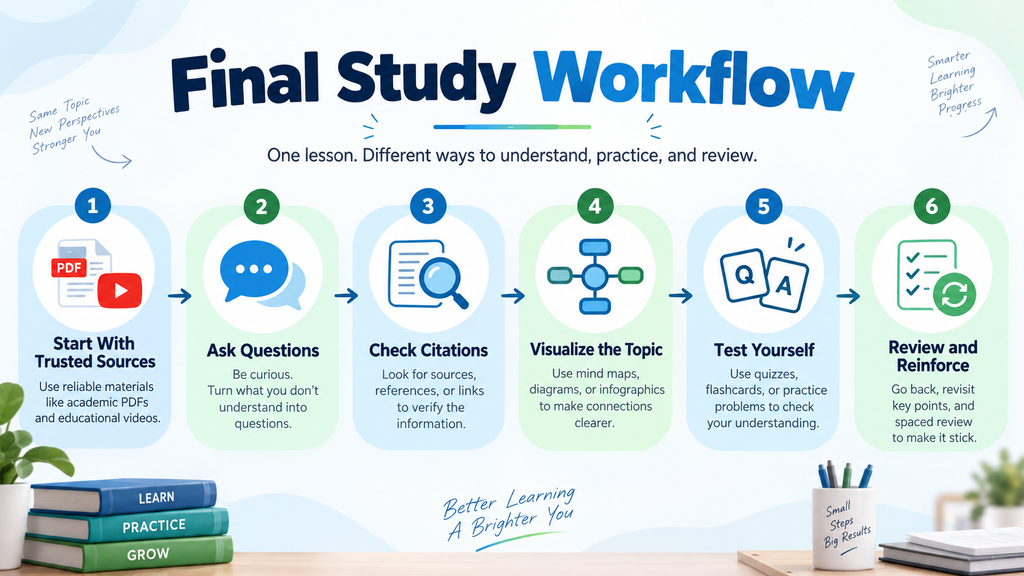
After testing all of these outputs, the most useful workflow was not “generate everything.” It was:
SOURCE → ASK → CHECK → VISUALIZE → TEST → REVIEW
- Source: Start with trusted course materials.
- Ask: Use source-grounded questions to clarify difficult ideas.
- Check: Open citations and return to the original material.
- Visualize: Use mind maps and infographics to see relationships.
- Test: Use quizzes and flashcards for retrieval practice.
- Review: Use audio, video, reports, or visual summaries when they genuinely help.
This is also consistent with the approach in Learn Coding With AI Without Letting the Agent Do All the Thinking: the tool can guide, explain, test, and review, but the learner should still perform the skill being learned.
What About the Free Version?
I tested this workflow using the free version and did reach usage limits. Some generations were delayed until the quota refreshed, while other screens offered an upgrade.
Google changed Gemini Notebook to compute-based usage limits beginning September 2, 2026. Usage can depend on the complexity of the prompt, the models and features used, the length of a chat, and the specific output being generated. When a limit is reached, quota can refresh in five-hour intervals until the weekly limit is reached.
For most students, that makes selectivity even more important. You may not need a quiz, podcast, video, slide deck, report, and infographic every time you study. Choose the output that matches your current goal.
Final Takeaway
Gemini Notebook for students is most useful when it becomes more than a summarizer.
Start with your real learning materials. Ask questions grounded in those sources. Verify citations. Visualize difficult relationships. Test yourself. Then use the infographic, Audio Overview, Video Overview, or other Studio outputs to reinforce what you have already learned.
Don’t just summarize your notes. Turn them into a study system—while keeping the thinking yours.